Moving to the New Association App — What to Expect
Prepared for: PFIAA
Prepared by: 2DC
Date: April 2026
Overview
PFIAA is moving from its existing WordPress-based platform to the new Association App — a purpose-built platform for professional associations. This document explains:
- What the new platform includes
- What data will be moved across (and how)
- What your members will need to do
- What the process looks like from start to finish
The migration is designed to be smooth and low-risk. Your existing WordPress site keeps running throughout the process. The switch happens only once everything has been verified and your team is ready.
What Is the New Association App?
The new platform is a dedicated, cloud-hosted system built specifically for associations like PFIAA. It replaces the WordPress-based setup with a proper multi-feature platform that includes:
| Feature | What it does |
|---|---|
| Member Directory | Manage all members, roles, and membership status in one place |
| Events | Create, publish, and manage events — accessible on the mobile app |
| Documents | Upload and organise files in folders, accessible to members |
| News / Articles | Publish news and announcements to members |
| Mobile App | iOS and Android app for members to access all content |
| Admin Dashboard | Web-based control panel for your team |
| Automated Data Sync | Pulls all existing content from WordPress automatically |
Your New Admin Dashboard
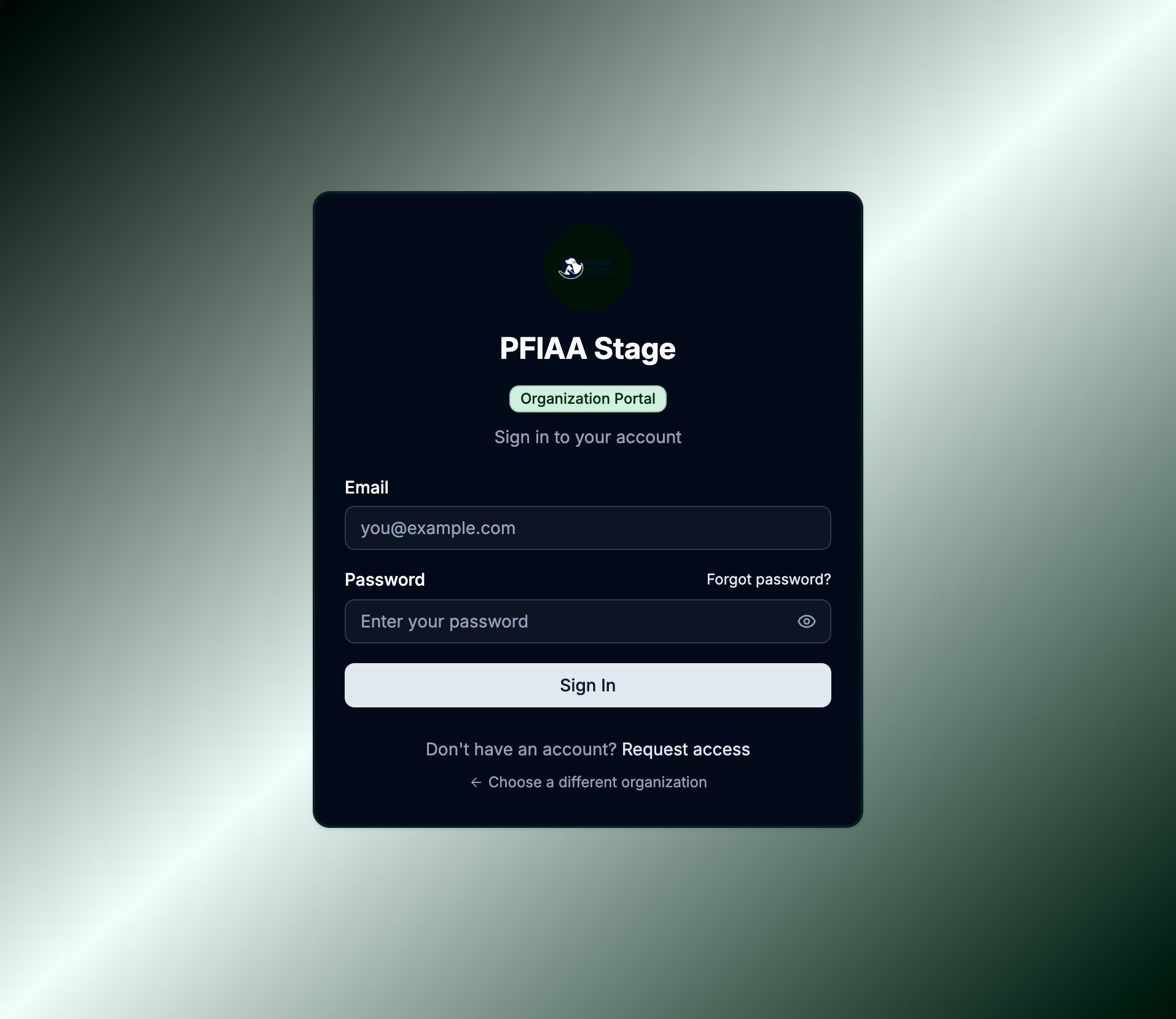
Your association has its own branded dashboard. Your team logs in at:
https://admin.theassociationapp.com.au
| Environment | URL | Used for |
|---|---|---|
| Production | https://admin.theassociationapp.com.au | Live platform — member-facing |
| Staging | https://admin-staging.theassociationapp.com.au | Testing and review before go-live |
Your 2DC team will confirm which environment to use at each stage of the migration. All screenshots in this document are taken from the production environment.
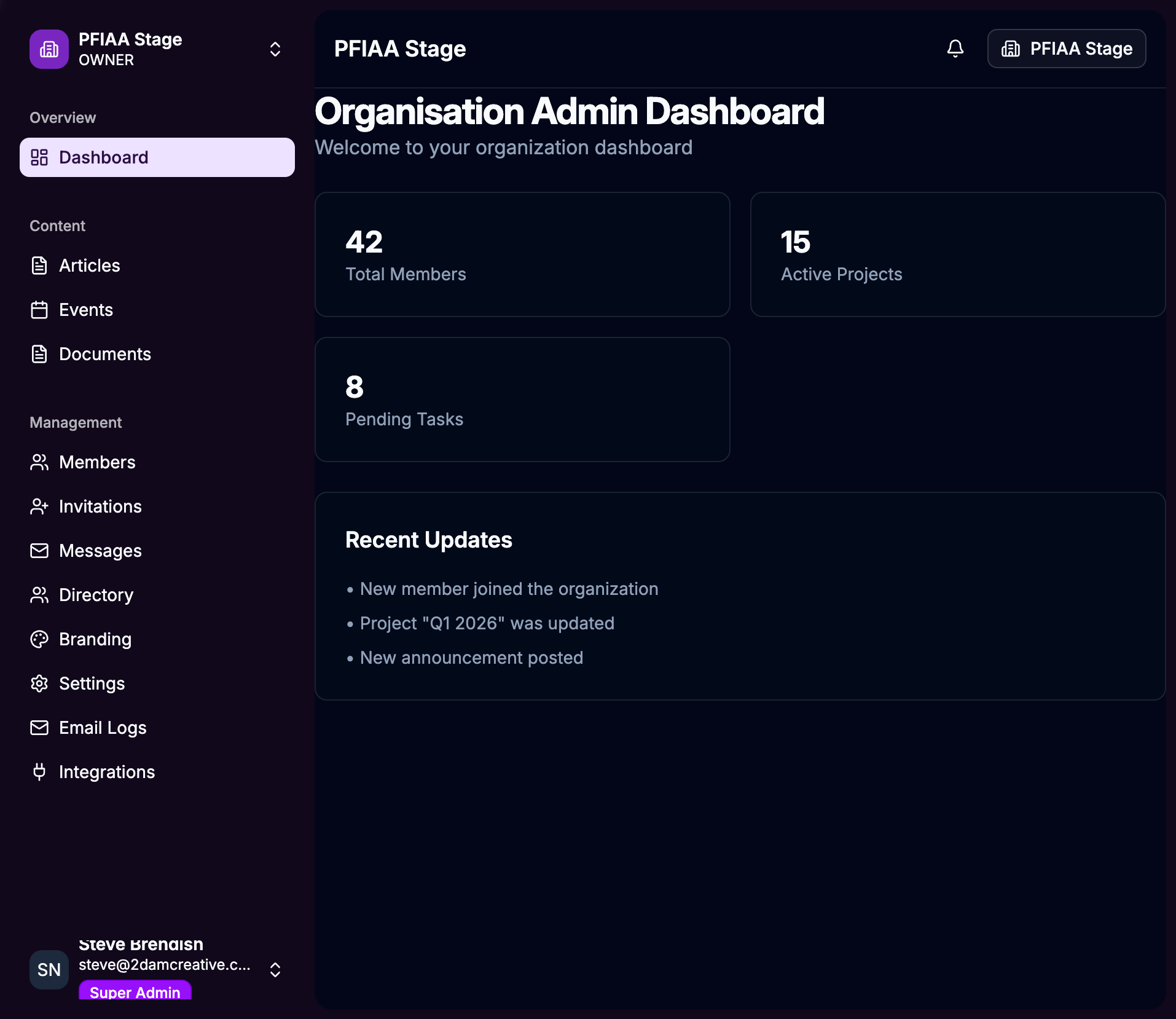
After signing in, you land on the Organisation Dashboard — a summary of your members, content, and activity.
What Data Will Be Moved Across?
All of the following data from your WordPress site will be automatically migrated to the new platform:
| Data type | What is included |
|---|---|
| Members | Name, email, phone number, job title, company, address, certification status, membership renewal date, membership status |
| Events | Title, description, date & time, location, virtual/in-person, cost, registration link |
| Articles / News | Title, content, featured image, category, tags, author, published date |
| Documents | File name, file (PDF, etc.), folder structure |
| Conferences | Same as events |
| Companies | Company name, description, website, contact details, logo |
| Notifications | Title, content, links |
What is NOT moved
| Item | Why |
|---|---|
| Member passwords | WordPress passwords cannot be transferred — members will set a new password via email (see Members section) |
| WordPress pages (About, Contact etc.) | These are website content, not association data — they stay on WordPress |
| WordPress blog comments | Not part of the association data set |
How the Data Migration Works
The migration uses a built-in tool called the WordPress Connector — a data sync bridge that connects your WordPress site to the new platform and copies everything across automatically.
Step 1 — We connect your WordPress site
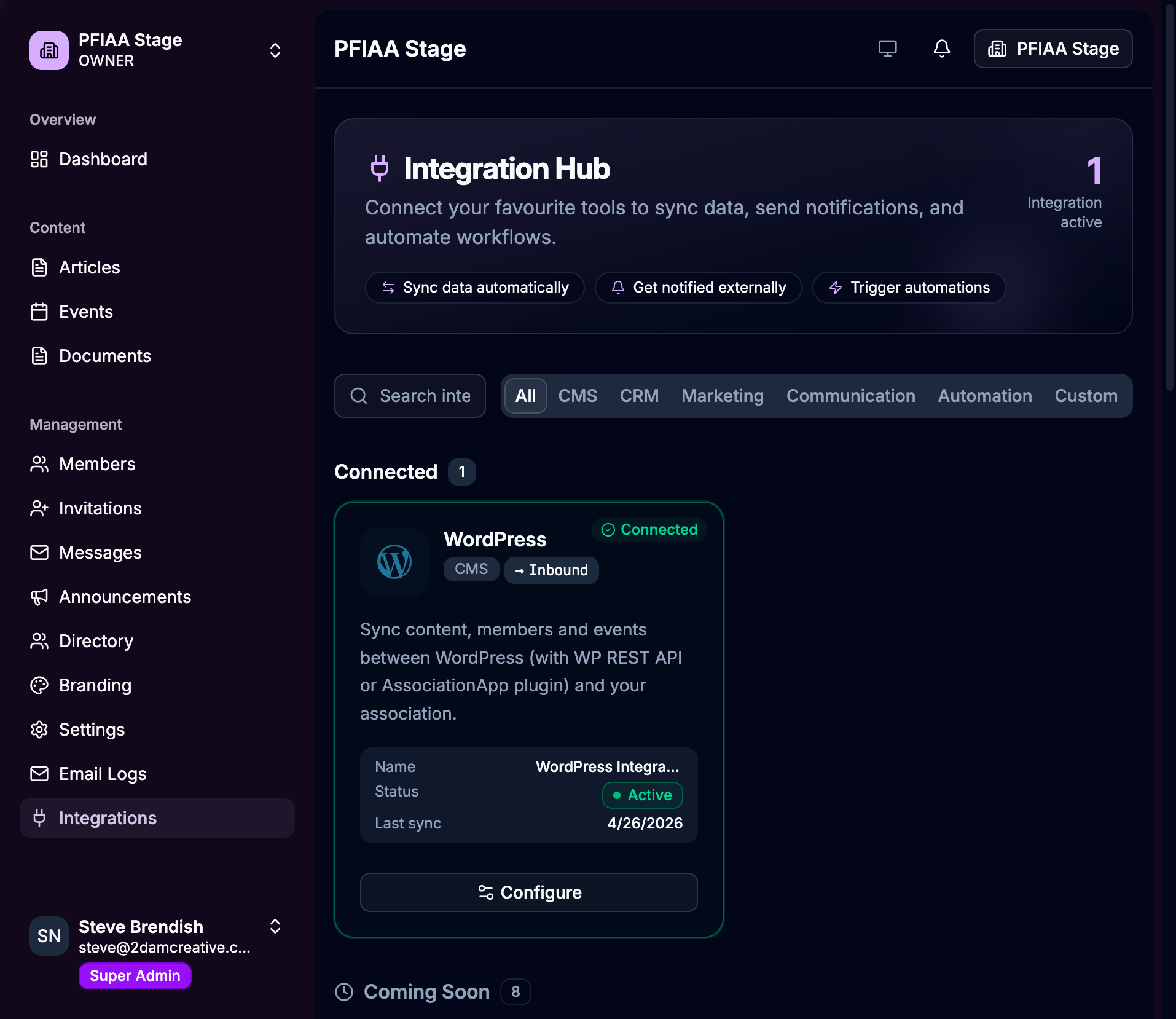
Your 2DC team sets up the connection in the Integrations section of the dashboard. The connector is given your WordPress site address and a secure API key.
Step 2 — We verify the connection
The system runs a 5-step check to confirm it can reach your WordPress site, that the plugin is active, and that the API key is correct. Only when all checks pass does the migration proceed.
Step 3 — We run the Initial Import
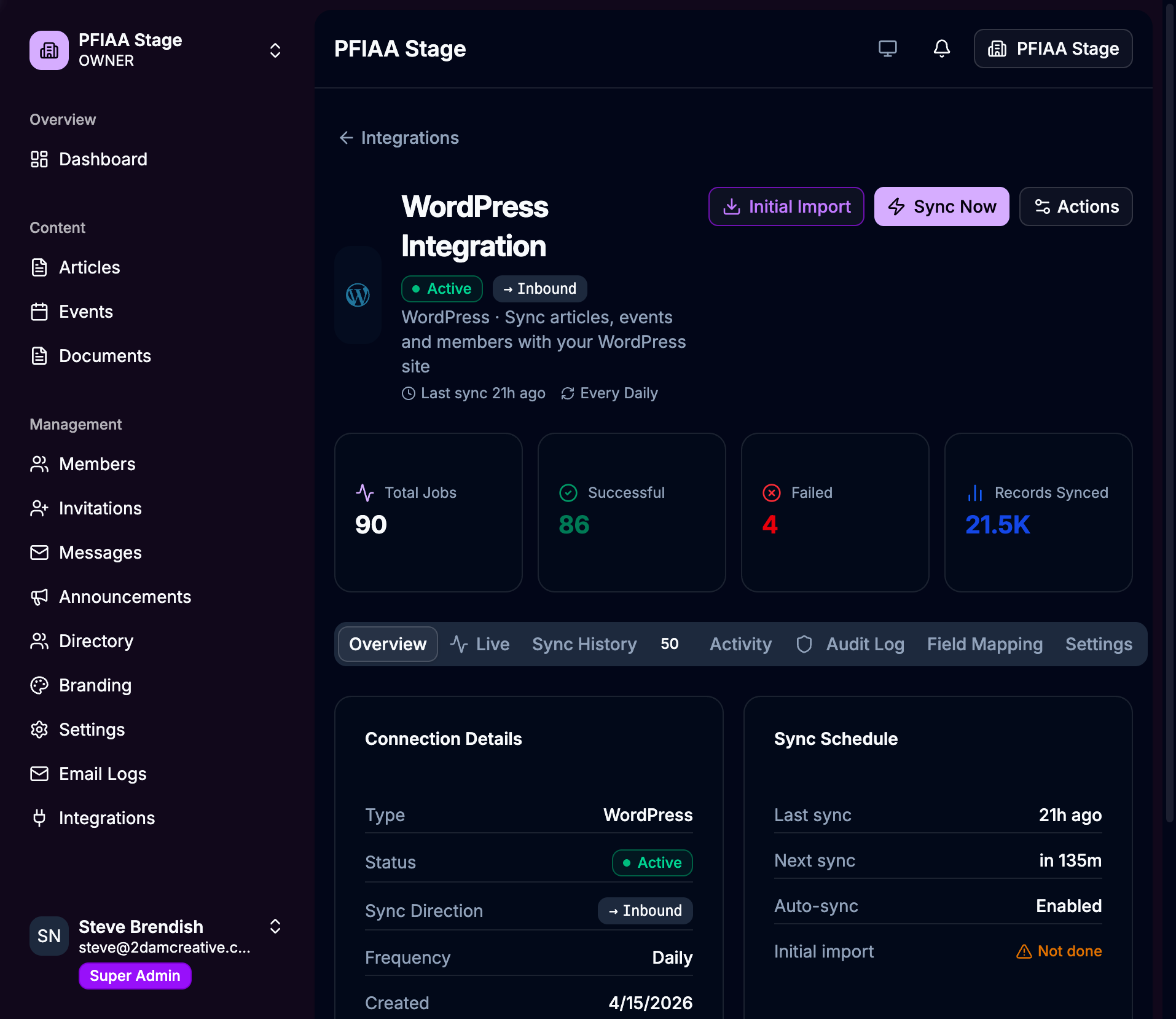
With one click on Initial Import, the system begins pulling all your data from WordPress:
- Articles / News
- Members
- Events
- Conferences
- Companies
- Documents
- Notifications
This runs in the background. Your WordPress site is not affected — it keeps working normally throughout. The live sync panel shows progress in real time.
Step 4 — We verify everything looks correct
Once the import completes, your 2DC team and your designated administrator review the data:
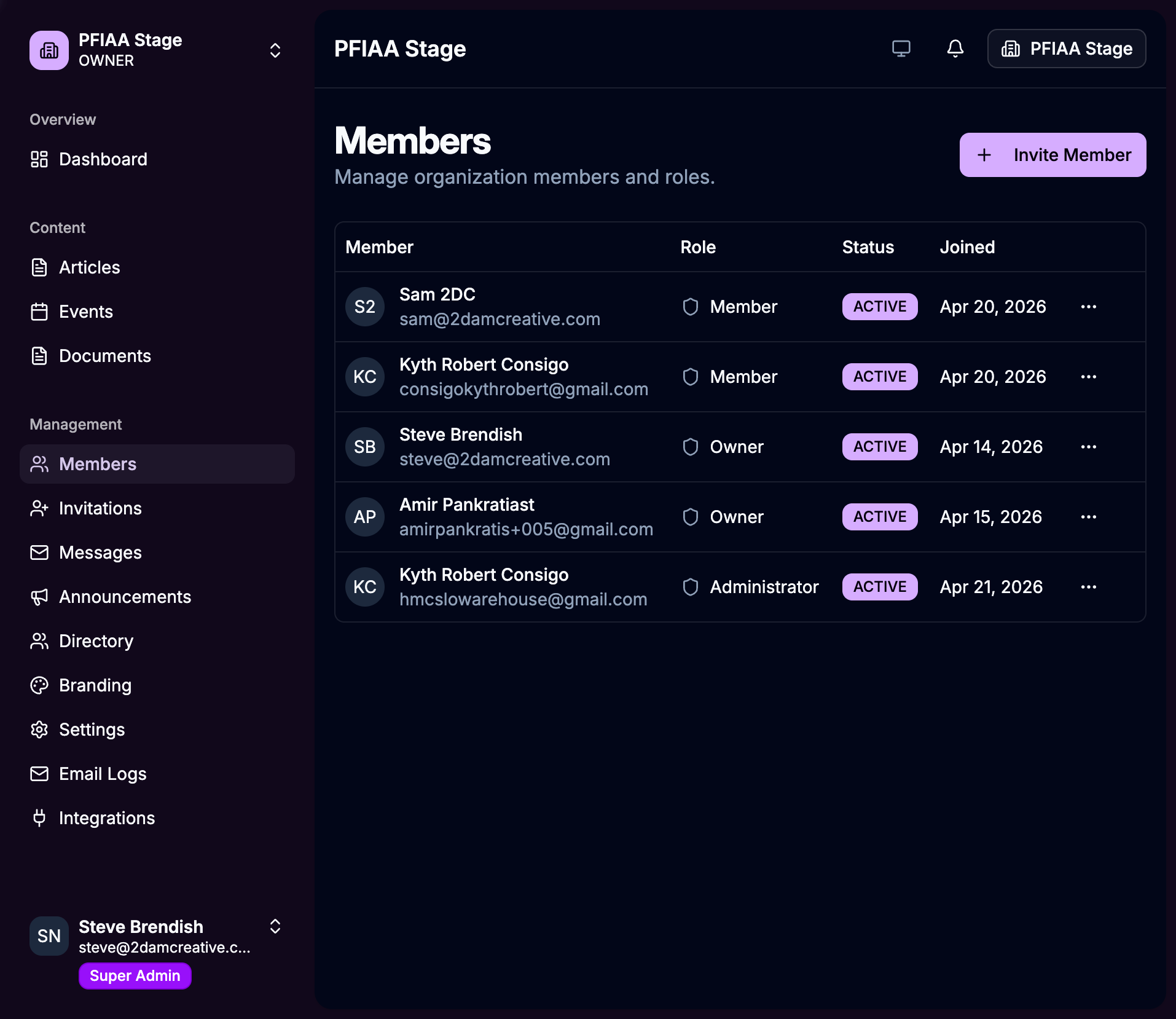
Members page — confirm member count and spot-check individual records:
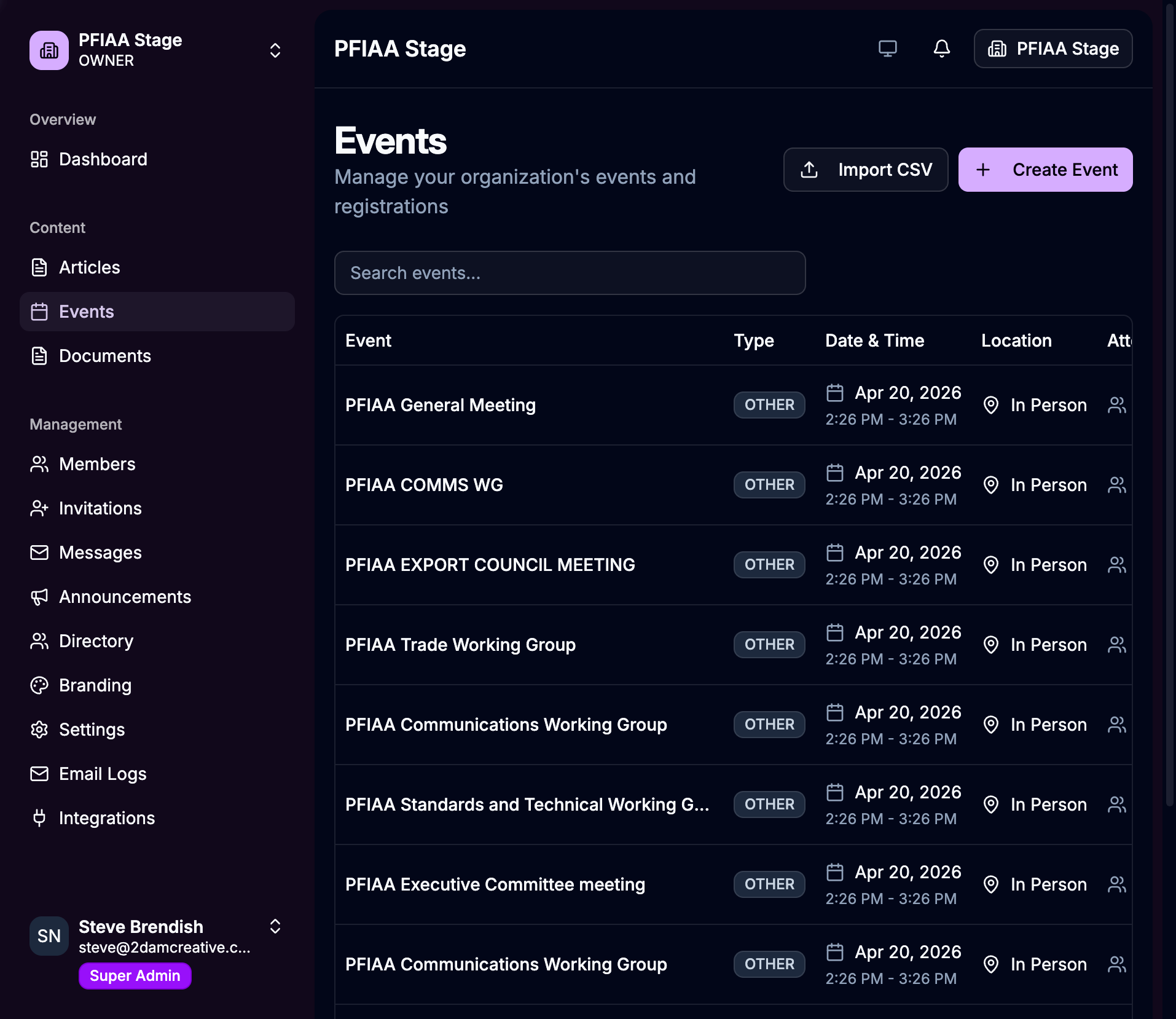
Events page — confirm events are present with correct titles and dates:
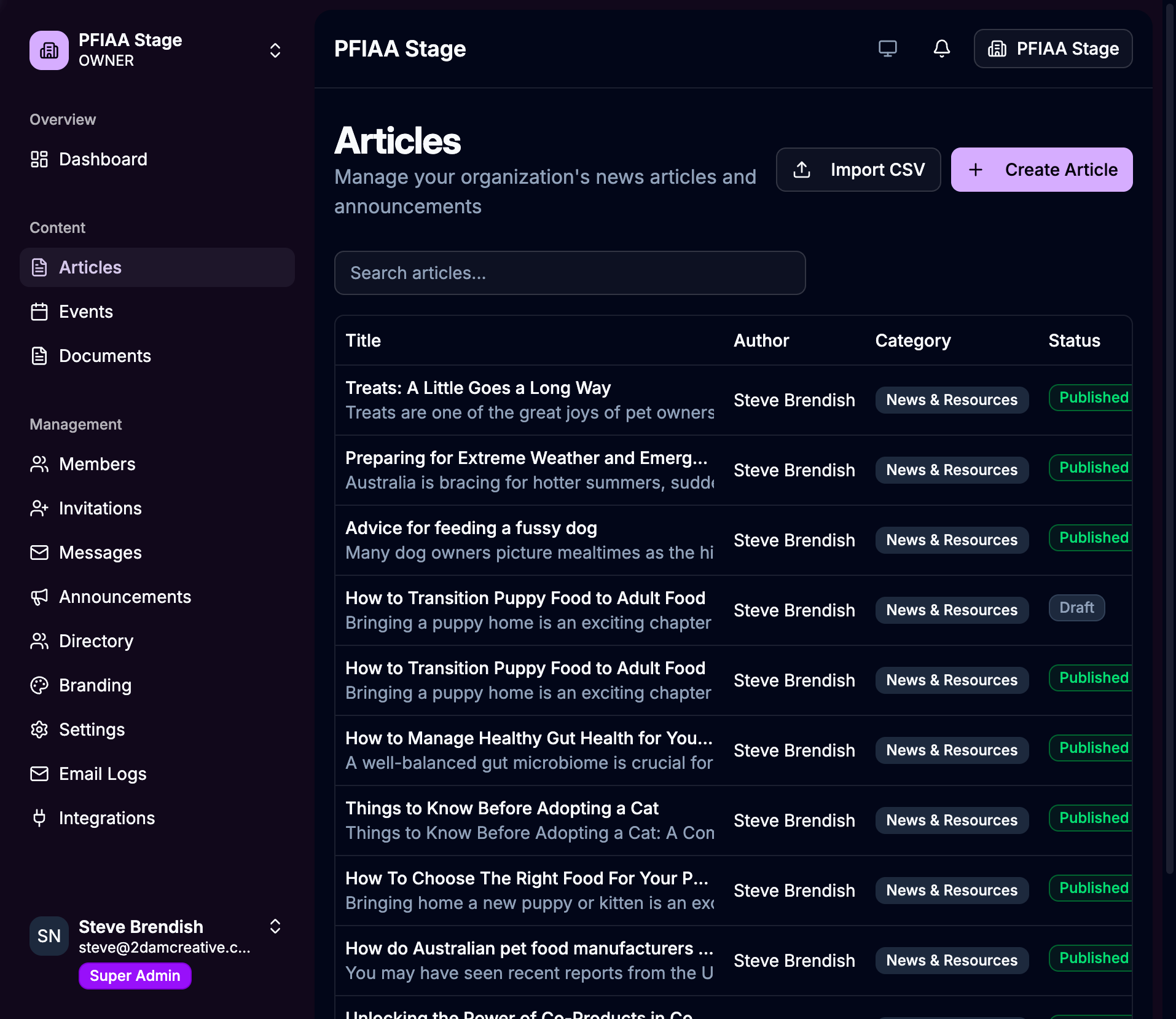
Articles page — confirm news articles imported correctly, showing "WP" badge for WordPress-sourced content:
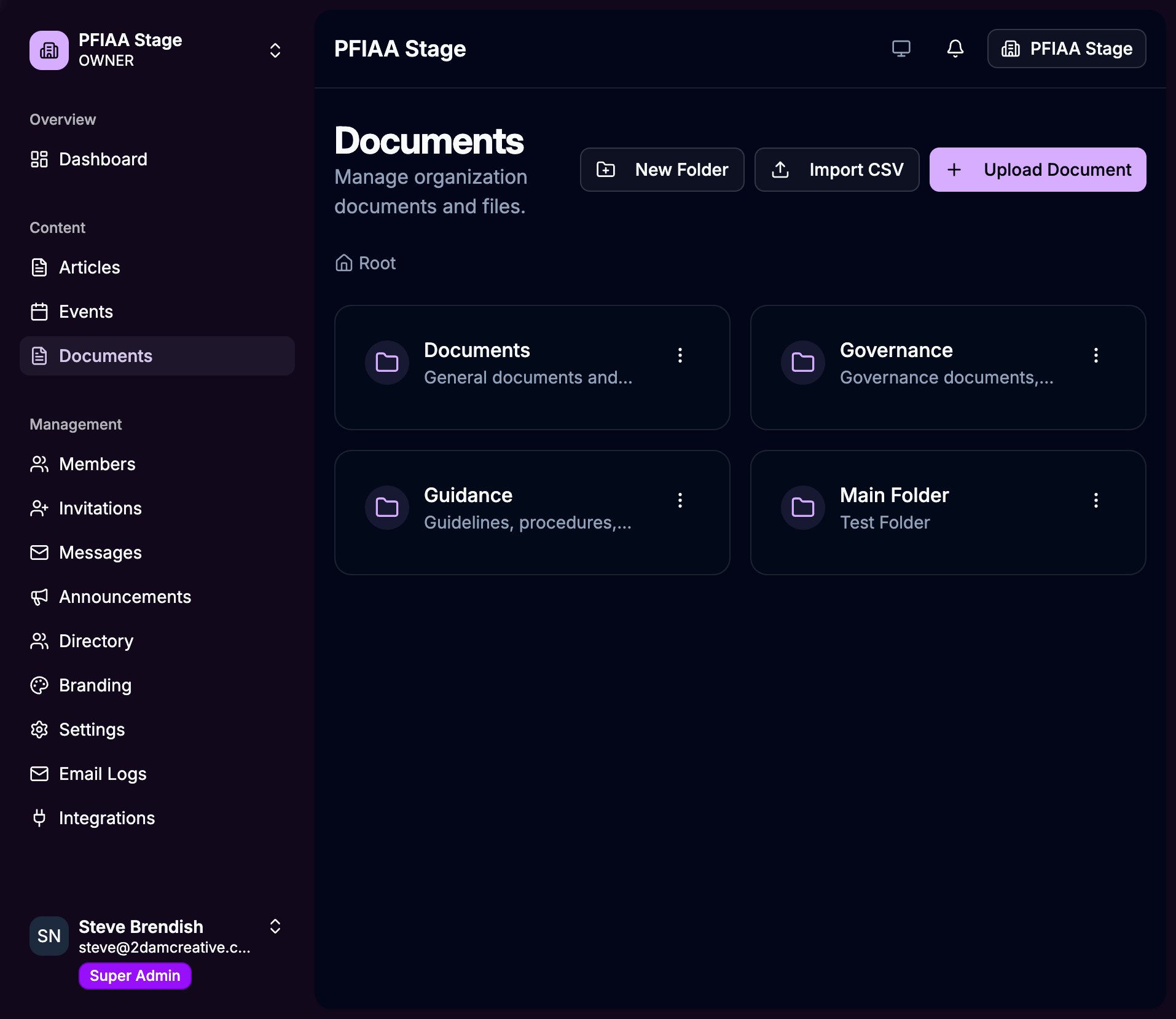
Documents page — confirm folders are present and files are accessible:
Step 5 — Ongoing sync (optional)
After the initial migration, the connector can continue running automatically on a schedule (e.g. daily). This means:
- New content added to WordPress is automatically copied to the new platform
- Your team can keep managing content in WordPress during the transition period
- When you are ready to fully switch over, we turn off the WordPress sync
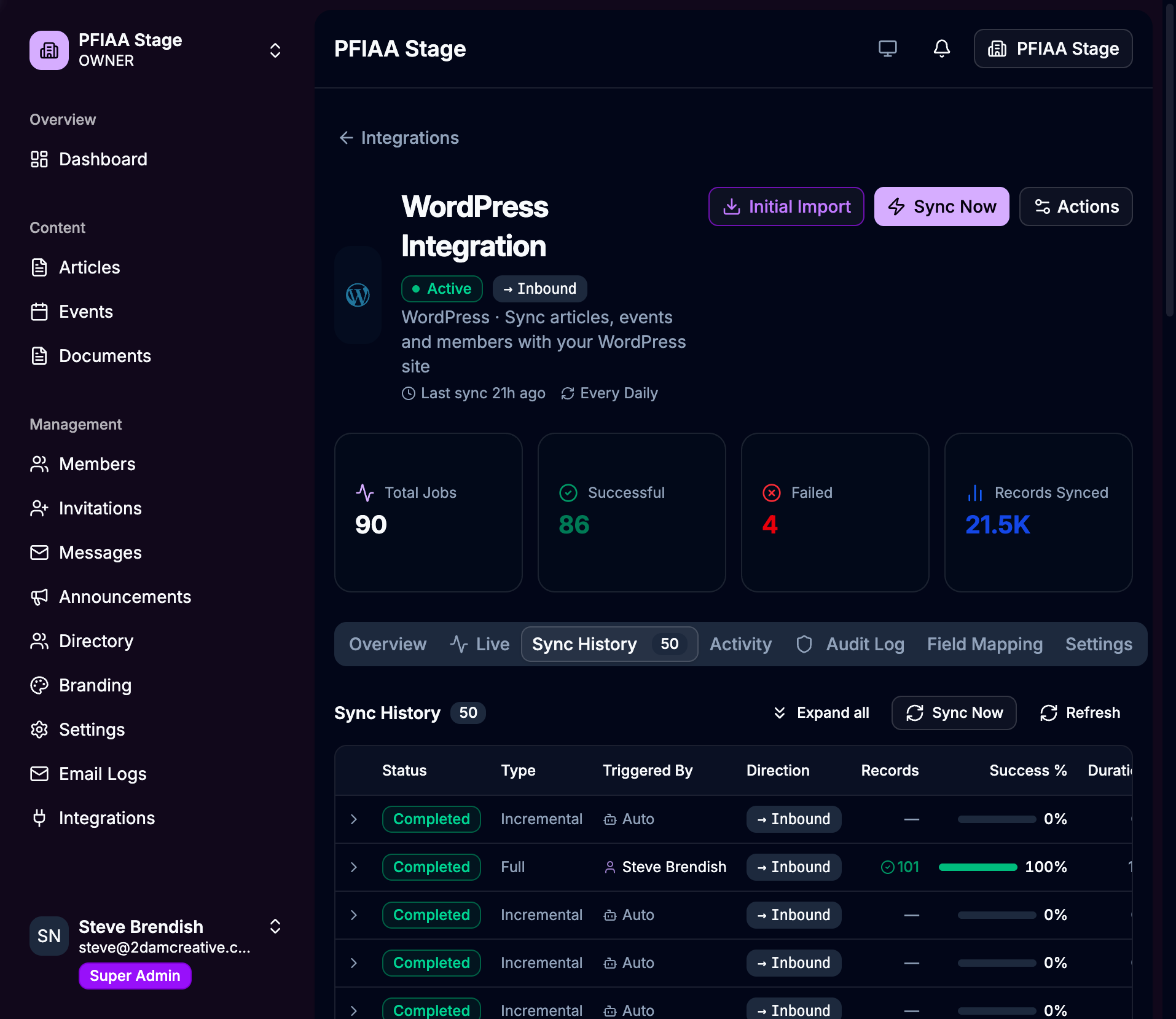
The sync history tab shows every sync job that has run, how many records were processed, and whether any errors occurred:
What Your Members Need to Do
Set a new password
When members are imported, their accounts are created automatically using their existing email addresses. However, passwords cannot be transferred from the old system.
Each member will receive an email with a link to set their new password. They click the link, choose a password, and they are in.
Members keep everything:
- Their profile (name, phone, address, job title, etc.)
- Their membership status
- Access to all events, documents, and news
The only action required from members is setting a new password once, when they first use the new app.
Update the mobile app
Once the new platform is ready, an updated version of the mobile app will be available on the App Store (iPhone) and Google Play (Android). Members will see an update notification and simply tap Update — just like any other app update.
After updating, the app connects to the new platform automatically. Members sign in with their email and new password.
Setting Up the Connector — What It Looks Like
For transparency, here is what the connector setup looks like from the admin dashboard. Your 2DC team handles this — you do not need to do this yourself.
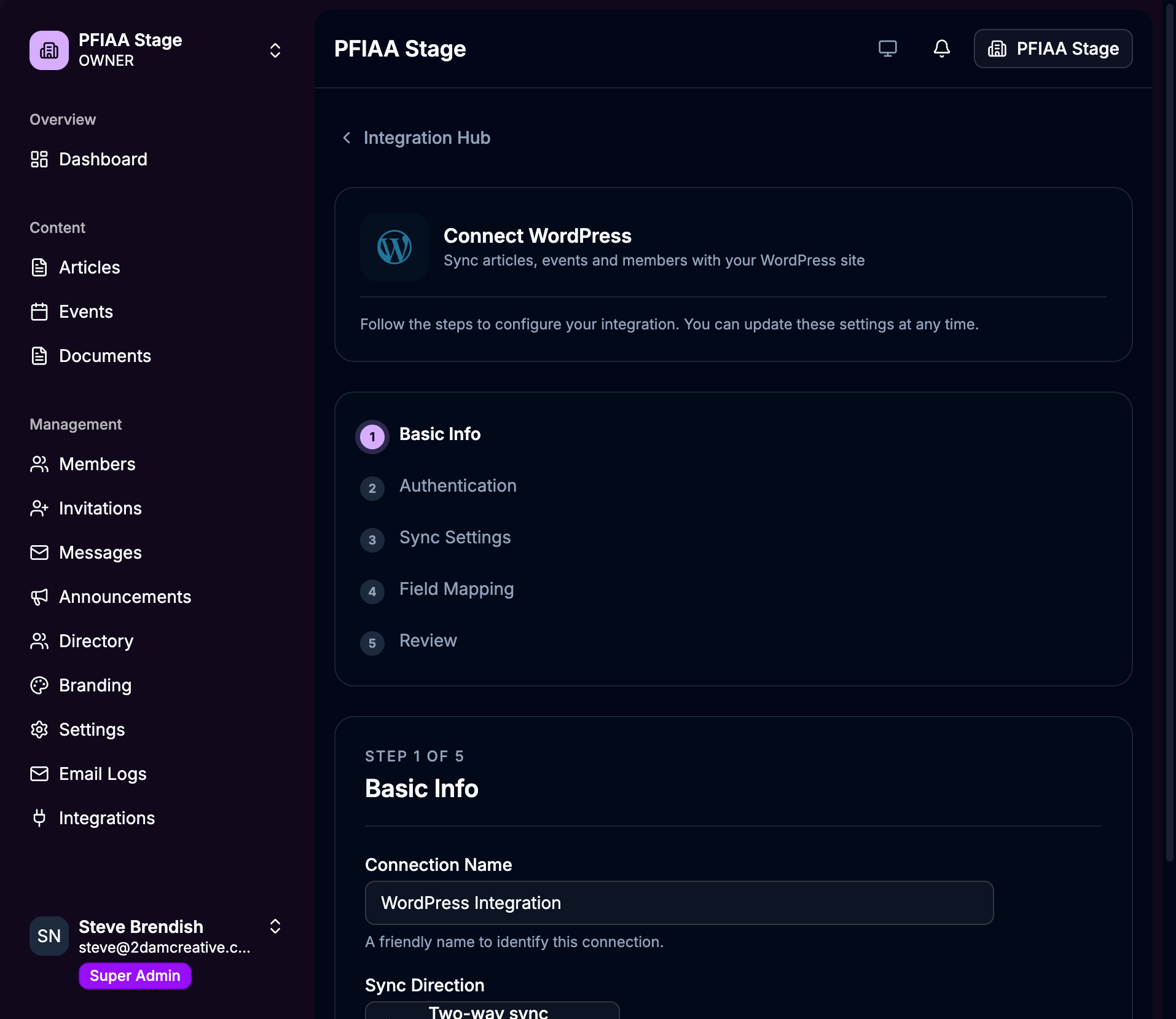
Step 1 — Name the connection:
Step 2 — Enter your WordPress site URL and API key:
The API key is a secure code generated in your WordPress admin settings. It ensures only the new platform can access your data.
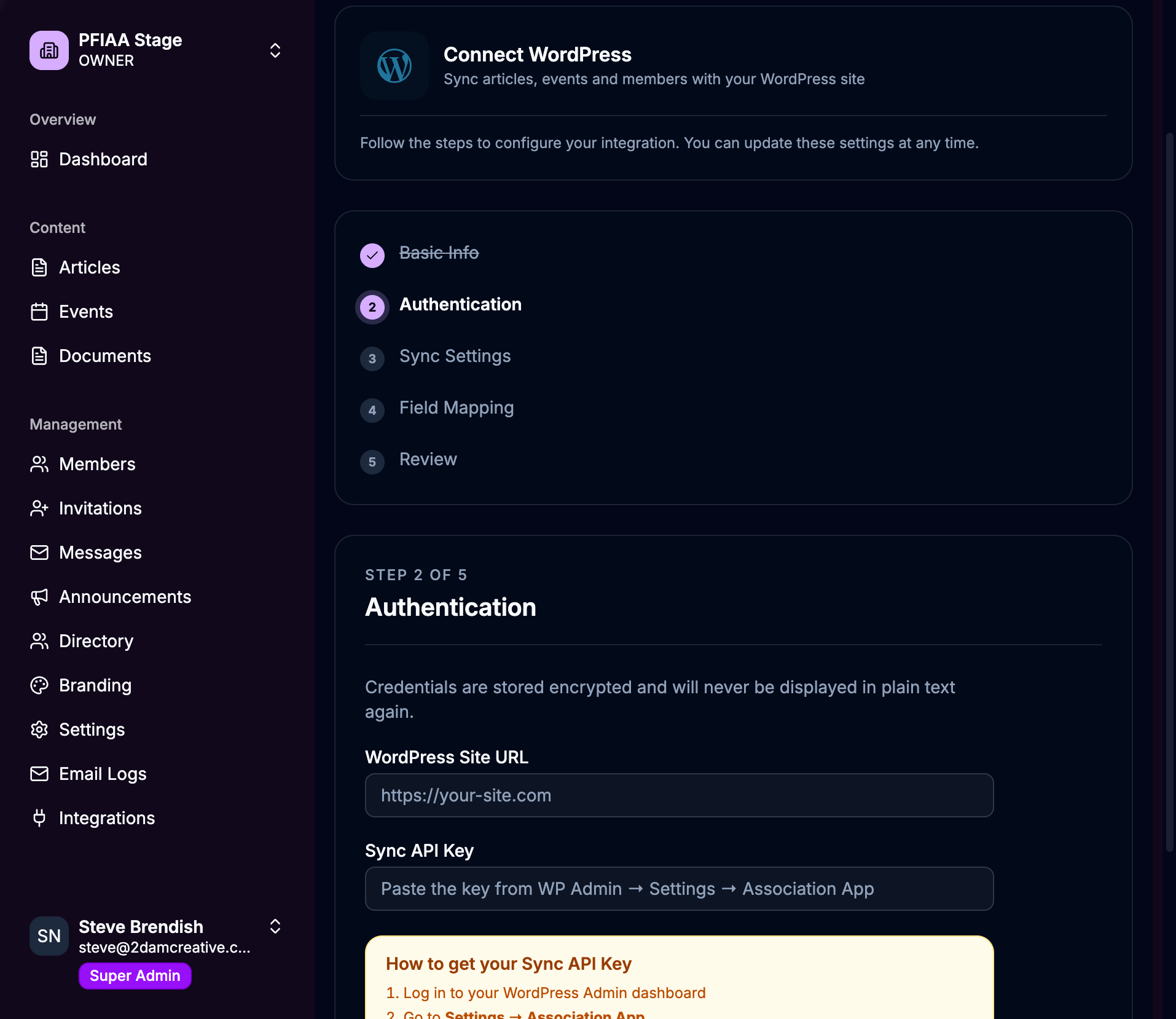
From there, the wizard walks through selecting which data types to sync, reviewing field mappings, and confirming the connection before anything is imported.
Migration Timeline
The full migration follows this sequence. Your 2DC team manages most of this — your involvement is mainly in the verification step and in communicating to your members.
| Phase | Who does it | What happens |
|---|---|---|
| 1. Prepare WordPress | 2DC | Plugin updated, sync key generated, backup taken |
| 2. Set up the platform account | 2DC + PFIAA admin | Dashboard configured, branding applied |
| 3. Connect WordPress | 2DC | Connector created, connection tested |
| 4. Initial Import | 2DC | All data copied from WordPress to new platform |
| 5. Verify data | 2DC + PFIAA admin | Spot-check members, events, documents, articles |
| 6. Send password reset emails | PFIAA admin | Members receive email to set new password |
| 7. Mobile app update | 2DC | New app version submitted to App Store / Google Play |
| 8. Go live | 2DC + PFIAA admin | Final sync, switch to new platform |
| 9. Monitor | 2DC | Watch for any issues in first 7 days |
Estimated total calendar time: 2–3 weeks from start to go-live (most of this is waiting for app store review, which takes 1–3 days).
Your team's active involvement: Approximately 1–2 hours total (reviewing data and sending the password reset email).
What Stays the Same
- All existing data is preserved — nothing is deleted from WordPress; it is copied to the new platform
- The mobile app experience is very similar — members access events, news, and documents in the same way
- Your content management continues in the new dashboard, which is more purpose-built than WordPress Admin
- Your WordPress website continues operating and is not affected by the migration
Frequently Asked Questions
Will my members lose access during the migration?
No. The WordPress site and existing app continue working throughout the migration. Members only experience a brief interruption when they update the mobile app, which takes less than a minute.
What if something goes wrong?
The migration is reversible at any point before the final go-live step. Your WordPress site and data are not changed. A full backup is taken before anything starts.
Do we need to re-enter all our data manually?
No. The data sync tool copies everything automatically. The only manual step is reviewing the data after import to confirm it looks correct.
Can we keep adding content to WordPress while migrating?
Yes. The connector syncs on a schedule, so any new content added to WordPress is automatically picked up on the next sync.
What if a member doesn't receive their password reset email?
You can resend the password reset from the Members page in the dashboard. If email delivery is an issue, we can also set your email configuration to use your own SMTP server.
How long does the import take?
For a typical association, the initial import completes in 5–30 minutes depending on how much content is in WordPress. You can watch the live progress in the dashboard.
What about images and document files?
Images and document files (PDFs etc.) are downloaded from WordPress and stored in the new platform's secure cloud storage. They remain accessible to members even if WordPress is eventually decommissioned.
Questions?
Your dedicated 2DC contact is available throughout the migration. Please reach out any time:
| Contact | For |
|---|---|
| Your 2DC Account Manager | Migration timeline, decisions, scheduling |
| [email protected] | Technical questions, data issues |
We are committed to making this transition as smooth as possible for your team and your members.