WordPress Connector — Settings & Field Mapping Reference
This page documents every option available in the Settings and Field Mapping tabs of a WordPress connector. Find these tabs by navigating to Integrations → [your WordPress connector].
Settings Tab
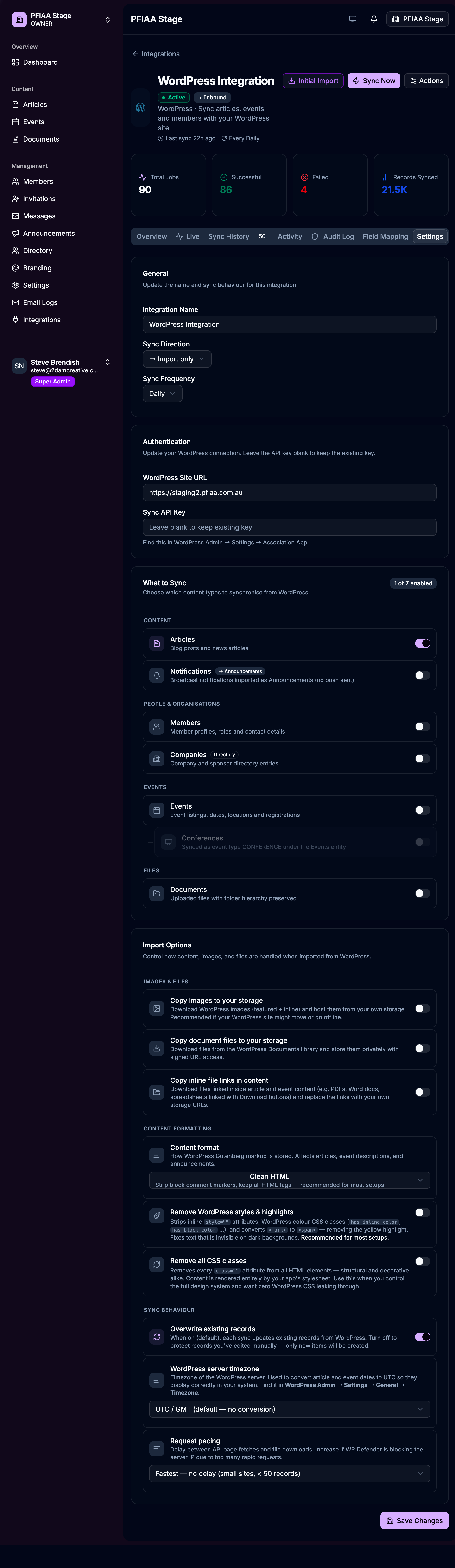
The Settings tab is divided into four sections: General, Authentication, What to Sync, and Import Options. Changes take effect on the next sync after you click Save Changes.
General
| Field | What it does |
|---|---|
| Integration Name | A label you choose to identify this connector in the dashboard. Rename it at any time — it does not affect the sync. |
| Sync Direction | Controls which way data flows. Currently only Import only (→ Inbound) is available for WordPress — data flows from WordPress into the platform, not back. |
| Sync Frequency | How often the scheduler automatically runs an incremental sync. Options: Hourly, Every 6 hours, Daily, Weekly, or Manual only. Choose based on how often content changes on your WordPress site. |
Authentication
| Field | What it does |
|---|---|
| WordPress Site URL | The full URL of your WordPress site, e.g. https://staging2.pfiaa.com.au. Must be publicly accessible over HTTPS. No trailing slash. |
| Sync API Key | The secret key that proves this platform is authorised to read data from your WordPress site. Leave this field blank when saving to keep the existing key — you only need to enter it if the key has changed. Find this key in WordPress Admin → Settings → Association App. |
If you regenerate the key in WordPress, paste the new key here and save before the next scheduled sync runs. If the key mismatches, the sync will fail with a 401 error.
What to Sync
This section controls which data types are pulled from WordPress. Only enabled types are fetched during each sync. Disabling a type stops future imports of that type — previously imported records are not deleted.
| Toggle | Data imported | Notes |
|---|---|---|
| Articles | WordPress posts (blog, news) | Standard WordPress post post type. Imported as News Articles. |
| Notifications → Announcements | WordPress notification custom post type | Imported as Announcements (platform-level notices). Push notifications are not sent for these — they appear in the Announcements feed only. |
| Members | WordPress registered users | All user roles are imported. Role maps to membership status (e.g. association-member → ACTIVE). |
| Companies → Directory | WordPress company custom post type | Imported into the organisation's Directory. |
| Events | WordPress event custom post type | Includes title, dates, location, cost, and registration URL. |
| Conferences | WordPress conference custom post type | Imported as Events with type CONFERENCE. This toggle is only available when Events is also enabled — conferences are a sub-type of the Events entity. |
| Documents | WordPress document, policy, and recall post types | Folder hierarchy from WordPress taxonomies is preserved. |
The counter in the top-right of this section (e.g. 1 of 7 enabled) shows at a glance how many types are active.
Import Options
Images & Files
These three options control whether binary files from WordPress are copied into the platform's cloud storage. If left off, only URLs are stored — those URLs may break if the WordPress site moves or is taken offline.
| Option | What it does | When to enable |
|---|---|---|
| Copy images to your storage | Downloads featured images and all inline images from article/event content and re-hosts them from your platform's cloud storage. Image URLs in content are rewritten to point to the new location. | Recommended. Enable this if there is any chance the WordPress site could move, go offline, or be decommissioned. |
| Copy document files to your storage | Downloads the actual PDF/file from each Document record and stores it privately with signed URL access (members must be logged in to download). | Recommended for privacy. Enable so documents are not publicly accessible via the old WordPress URL. |
| Copy inline file links in content | Downloads files linked inside article and event HTML content — e.g. PDFs or Word docs linked via a "Download" button — and replaces those links with your own storage URLs. | Enable if articles contain embedded download links that you want to preserve when WordPress is decommissioned. |
Content Formatting
Controls how WordPress Gutenberg block markup is stored in the platform. Affects articles, event descriptions, and announcements.
| Option | What it does |
|---|---|
| Content format | Three options: Clean HTML (strips Gutenberg block comment markers but keeps all HTML tags — recommended for most setups), Raw Gutenberg (keeps block comments intact — useful if you plan to parse blocks yourself), Plain text (strips all HTML — use only if your app renders plain text). |
| Remove WordPress styles & highlights | Strips inline style="" attributes and WordPress colour CSS classes (has-inline-color, has-black-color, etc.). Converts <mark> (yellow highlight) to <span> so text is not invisible on dark app backgrounds. Recommended for most setups — leave this on. |
| Remove all CSS classes | Strips every class="" attribute from all HTML elements. Content is then styled entirely by your app's own stylesheet with no WordPress CSS leaking through. Turn on only if you fully control your app's design system and want a completely clean HTML output. Leave off if you rely on any WordPress class-based styling. |
This strips structural classes too (e.g. wp-block-columns, alignwide). Only enable if you have confirmed your app's stylesheet handles all layout and typography without relying on any WordPress classes.
Sync Behaviour
| Option | What it does |
|---|---|
| Overwrite existing records | On (default): every sync compares the incoming WordPress data to what is in the platform and updates changed records. Off: the sync only creates new records — records that already exist in the platform are never overwritten. Turn this off if your team is manually editing records in the platform and you do not want WordPress to overwrite those edits on the next sync. |
| WordPress server timezone | The timezone of your WordPress server (find it at WordPress Admin → Settings → General → Timezone). The sync uses this to convert article publish dates and event start/end times from the server's local time to UTC for correct display in the platform. Leave as UTC / GMT if your WordPress server is already running in UTC. Common values: Australia/Sydney (AEST/AEDT), Australia/Melbourne, America/New_York. |
| Request pacing | Delay inserted between each API page fetch and each file download. Options: Fastest — no delay (small sites, < 50 records), Slow — 500ms delay (medium sites), Very slow — 1s delay (large sites or when WP Defender / Wordfence is blocking requests). Increase this if you see 429 errors or IP-blocking errors in sync logs. |
Field Mapping Tab
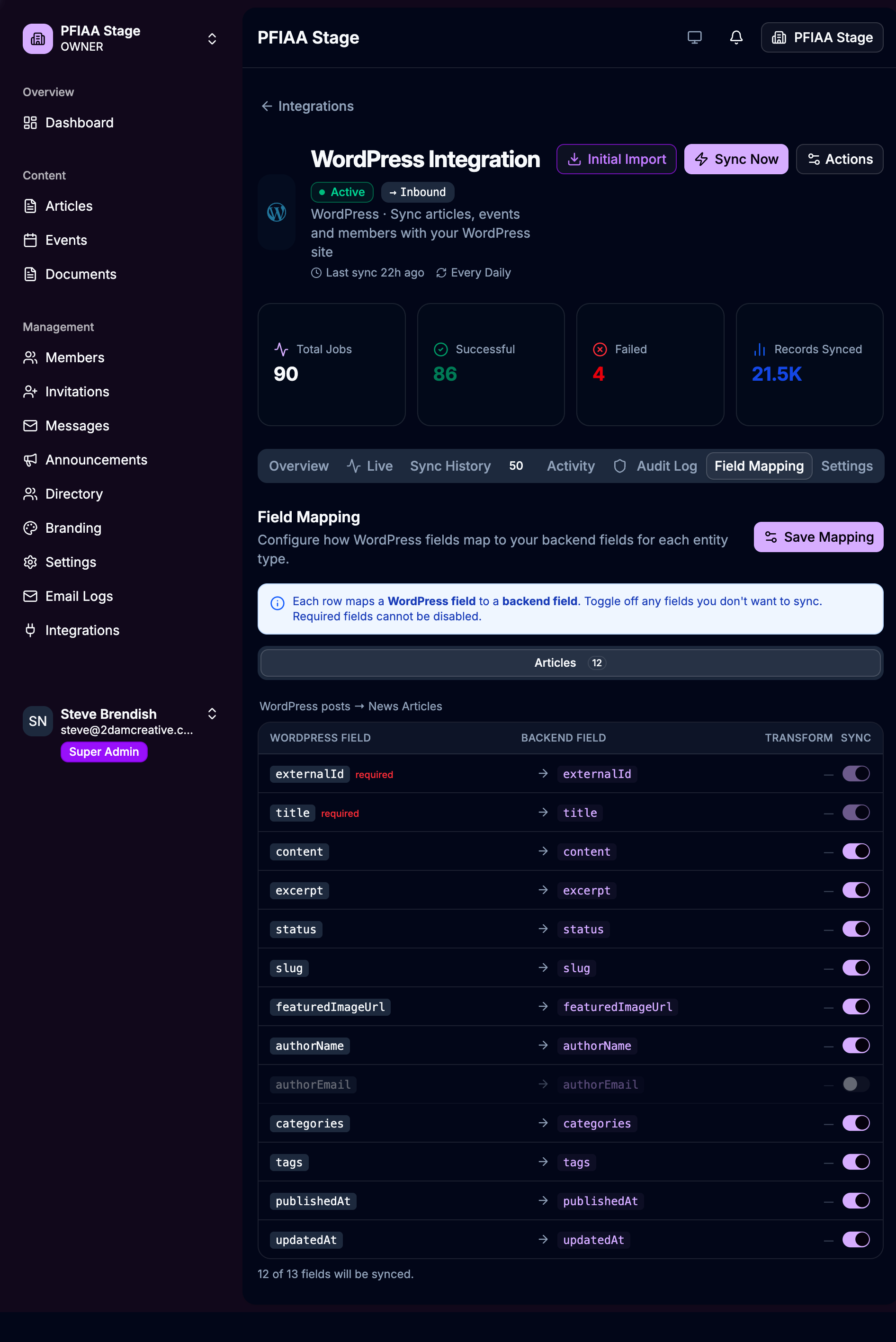
The Field Mapping tab lets you control which individual fields from WordPress are imported for each entity type, and see exactly how WordPress field names correspond to platform field names.
How it works
Each row in the mapping table represents one field:
| Column | Meaning |
|---|---|
| WordPress Field | The field name as it comes from the WordPress plugin sync API (e.g. featuredImageUrl, authorName) |
| Backend Field | The field name in the platform where this value is stored (usually identical) |
| Transform | Any transformation applied to the value (e.g. date parsing, status mapping). Most fields show — meaning no transformation. |
| Sync | Toggle on/off. When off, this field is skipped during import — the platform field keeps whatever value it currently has. |
Fields marked required cannot be toggled off — they are essential for the sync to function (e.g. externalId and title).
The counter at the bottom of each entity tab shows how many fields are currently active, e.g. 12 of 13 fields will be synced.
Entity tabs
The mapping tab shows one sub-tab per enabled entity type. Only entity types that are turned on in the Settings → What to Sync section appear here. In the example above, only Articles is enabled so only the Articles tab is shown. Enable Members, Events, or Documents in Settings to see their mapping tabs appear here.
Articles field mapping
| WordPress field | Platform field | Notes |
|---|---|---|
externalId | externalId | WordPress post ID — required, cannot be disabled |
title | title | Post title — required, cannot be disabled |
content | content | Full post HTML body |
excerpt | excerpt / summary | Post excerpt or auto-trimmed content |
status | status | publish → PUBLISHED, draft → DRAFT |
slug | slug | URL-friendly post slug |
featuredImageUrl | featuredImageUrl | Full-size featured image URL |
authorName | authorName | Display name of the post author |
authorEmail | authorEmail | Email of the post author (off by default — toggle on if needed) |
categories | categories | WordPress category names as an array |
tags | tags | WordPress tag names as an array |
publishedAt | publishedAt | Original WordPress publish date (preserved as sourceCreatedAt) |
updatedAt | updatedAt | WordPress last-modified date |
When to turn a field off
Turn a field off when:
- Your team manages that field manually in the platform and you don't want WordPress to overwrite it on each sync (e.g. you assign your own categories in the platform that differ from WordPress)
- The field contains data you don't use and want to keep the platform record clean (e.g.
authorEmailif you don't display author emails)
Click Save Mapping at the top of the Field Mapping tab after making any changes. The new mapping applies from the next sync onwards — it does not retroactively change already-imported records. To re-apply updated mappings to existing records, run a Full Sync after saving.
Recommended Settings for a First-Time Migration
If you are running the Initial Import for the first time, these settings give the best results for most associations:
| Setting | Recommended value | Why |
|---|---|---|
| Sync Direction | Import only | WordPress is the source of truth during migration |
| Sync Frequency | Daily | Keeps data fresh without overloading WordPress |
| What to Sync | Enable all applicable types | Get everything across in one import |
| Copy images to your storage | On | Ensures images survive if WordPress is later decommissioned |
| Copy document files to your storage | On | Documents become privately hosted with signed URLs |
| Copy inline file links in content | On if articles have download links | Preserves download buttons in article content |
| Content format | Clean HTML | Best balance — structured, readable HTML without Gutenberg noise |
| Remove WordPress styles & highlights | On | Prevents invisible text on dark app backgrounds |
| Remove all CSS classes | Off | Safe default — leave on unless you have a specific reason |
| Overwrite existing records | On | Ensures WordPress changes are reflected after each sync |
| WordPress server timezone | Match your WordPress timezone | Correct dates for events and articles |
| Request pacing | Fastest (or Slow if issues) | Start fast; increase only if you see 429 errors |